
Get in Balance icon

Get in Balance

Welcome to Get In Balance

Get in Balance is a set of visual motion and attention tools for balance and visual‑vestibular training. If you feel unsteady, motion‑sensitive, or “all at sea”, short, gentle practice can help you build tolerance over time.

Timers • Speed • Direction • Spacing

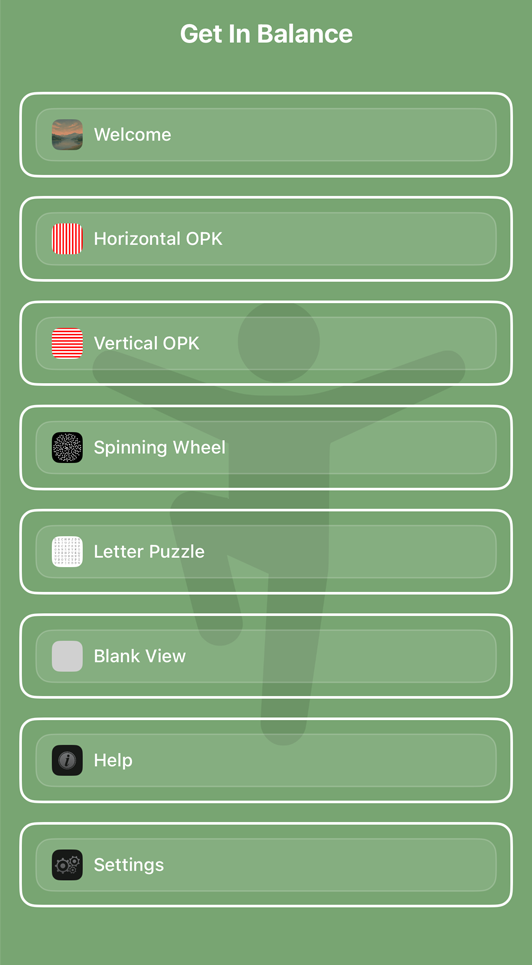
Get in Balance screenshots

What It Does

What It Does

The tools here use motion, rhythm, and attention to support steadier balance and calmer focus. Even simple left‑right eye movement and visual motion practice can be surprisingly settling for some people.

How It Works

Choose from moving visual lines (OPK patterns), spinning dots, or a letter puzzle. These kinds of exercises are commonly used in vestibular rehab programs, but they can also be part of a general balance routine. Start gently and build up gradually.

Customize Your Experience

For OPK Lines you can adjust duration, speed, colours, directions and column width. For Spinning Wheel you can adjust speed, direction, timer, and optional automatic direction changes. All tools can be used with or without a timer so sessions fit your preferences.

Tools

Line OPKs

The Line OPKs may be observed while standing one foot in front of another, balancing, though may also be used sitting down or standing comfortably.

In addition to double‑tap for the timer:

Adjust speed
• Swipe right to increase speed.
• Swipe left to decrease speed.
The new speed is shown briefly on screen and saved.

Change direction
• Swipe up/down to flip direction (left↔right for horizontal, up↔down for vertical).

Adjust column width (where available)
• Pinch to expand/contract the column width. Changes are shown live and saved. (Or use [ and ] on a keyboard.)

Change line colour
• Use the 'c' key to cycle colours (red, blue, yellow, black). Saved for next time.

Tip: Some people find it easier to keep their gaze on a fixed point while letting the motion happen in peripheral vision, while for others, following lines from the start to the end of the page, then jumping back to the start is more useful. Always build up time/speed gradually.

Spinning Wheel

To use the Spinning Wheel, find and focus on the dot in the centre of the screen (often best on a larger screen).

Adjust speed
• Swipe right to increase speed.
• Swipe left to decrease speed.
Speed changes are shown briefly and saved.

Change direction
• Swipe up/down to reverse direction.
• A pinch gesture (where available) can also change rotation direction.

If Auto Reverse Direction is enabled in Settings, the wheel will switch direction automatically after the configured Reverse Time.

Tip: Start slow and short. If you feel “too much”, pause, reduce speed, or switch to the Blank Screen ('b' key) for a brief reset.

Letters

The Letter Puzzle is designed to challenge attention and peripheral vision.

It’s often best on a larger screen. Try a few gentle tasks, such as:
• Focus on one letter, then (without moving your eyes) identify the letter 2 across and 2 down.
• Move your focus to a new letter every few seconds.
• Find all the vowels, or make words, while staying relaxed.

Tip: Keep sessions short at first. The goal is steady practice, not pushing through discomfort.

Keyboard Shortcuts

Where a keyboard is available the following shortcut keys apply:
H: Show Help
F: Flip Direction of Lines for OPKs
0-9: Set specific speed
: Increase Speed
: Decrease Speed
: Change Direction
: Flip Vertical/Horizontal Lines
]: Increase Line Column Width
[: Decrease Line Column Width
C: Select Line Colour
O: OPK Lines Horizontal Mode
V: OPK Lines Vertical Mode
S: Spinning Circle Mode
L: Letter Puzzle Mode
T: Toggle Time display
B: Show Blank (Grey) Screen
M: Return to Menu
+: Add 1 Minute to Timer
-: Remove 1 Minute Timer
D: Default settings
Space: Pause/Resume

Screen Sharing

Get in Balance works best on a larger screen, such as a TV.

The app is available natively for iPhone/iPad, Mac, and Apple TV. A single purchase includes all supported Apple platforms, so using the native version on the device you’re viewing on is usually the simplest and smoothest option.

If you’d still like to mirror or stream the display to another screen, there are a few good approaches.

## Apple (AirPlay / Screen Mirroring)

### From iPhone or iPad
1. Open Control Centre (swipe down from the top-right on newer devices).
2. Tap Screen Mirroring (the icon with two overlapping rectangles).
3. Choose your Apple TV, AirPlay-enabled TV, or Mac from the list.

### From Mac
You can mirror your Mac’s display to an Apple TV or AirPlay-enabled TV using Screen Mirroring from Control Centre (in the menu bar), or via Display settings.

## Google TV / Chromecast
If you want to stream to a Google TV or Chromecast device, you’ll typically need a third-party screen sharing app on iOS/iPadOS.

Searching for "Chromecast iOS screen mirroring" will show several options. Choose an app you trust, and follow its instructions to mirror your device to your TV.

Tip: If you have Apple TV, running Get in Balance directly on Apple TV is usually the most reliable and responsive way to use it on a television.

Download

These tools can support vestibular rehabilitation programs and balance training. They are not a substitute for professional medical advice, diagnosis, or treatment.

Overview

Get in Balance is a small set of visual motion and attention tools you can use for balance training and “visual motion tolerance” practice.

These patterns are commonly used in vestibular rehabilitation (especially for visually‑induced dizziness / “visual vertigo”), but they can also be useful more generally, for example as part of a gradual, consistent balance routine.

A gentle way to start (self‑guided)
• Start seated (or near a stable support). Use a larger screen if you can.
• Begin with short exposures (10–30 seconds). Aim for *mild* symptoms only.
• Rest between rounds (the Blank Screen can help), and stop if symptoms feel too strong.
• Build up gradually over days/weeks: a little more time or speed, not everything at once.

Stop and get advice if you have severe or unusual symptoms, new neurological symptoms, fainting, chest pain, or if dizziness is persistent/worsening. If you are using these tools as part of vestibular rehabilitation, guidance from a qualified health professional (such as a vestibular physiotherapist) is recommended. This app is not a substitute for professional medical care.

See References page for additional information.

Our Story

Our Wedding day was a perfect fairytale, though the stress of it all, pressure from kids, and a Covid-19 outbreak from it took its toll on Kira.

On our honeymoon, she started getting "Brain Zaps", Vertigo and other general dizziness that took a very long time to diagnose and treat.

Ultimately, we discovered Kira not only had BPPV (Benign paroxysmal positional vertigo), but also had PPPD (Persistent postural perceptual dizziness) brought on by issues with her ears and the stress.

This meant that she found even the movement of a car distressing and we were virtually trapped at home for some months.

Discovering Vestibular Rehabilitation made a tremendous difference, though this needed exercises that were not readily available.

Luckily, I could develop software, so this application was born.

It radically changed Kira's life, and we can only hope it does the same for you.